
Texture Atlas Maker
Posted on August 18th, 2009 in game development, photoshop | 27 Comments »
**2012 UPDATE**: I have released a new version of AtlasMaker with many more features. Check it out here!
As I promised last time, here is a photoshop script for creating texture atlases from a directory of images. The script uses a rectangle packer class written by Iván Montes which is itself based on an article by Jim Scott. All I really did was add a GUI.
Instructions
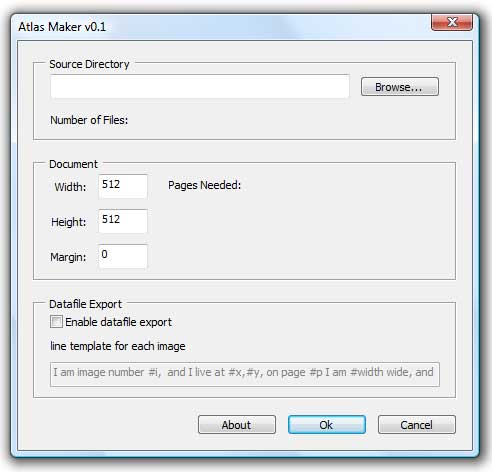
AtlasMaker works in much the same way as the SpriteGrabber script I wrote a few weeks ago. Unzip the AtlasMaker directory somewhere, then in Photoshop, go to File->Scripts->Browse and load AtlasMaker.jsx. The script should then run automatically.
To create a texture atlas, click browse and select the directory containing your textures. The script will then process each image to get the information it needs to make the atlas. Once this is done, you can modify your destination document size, or add an optional margin around each image. AtlasMaker will create as many pages as it needs to hold all the images.
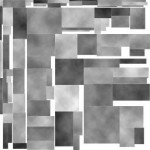
When you are ready, click ok and AtlasMaker will generate the texture atlas, with each texture on its own layer. You should end up with something like the image on the left.
Datafile Export
If you tick the “Enable datafile export” checkbox, AtlasMaker will create a text file in the src directory called “AtlasInfo.txt”, containing a line of text for each sprite.
Each line is generated from the text entered into the “line template” edit box. Tags are used to substitute information about each sprite into the text.
#i - Image index (0.. number of Images in directory)
#filename – Filename of source image
#width – Sprite width
#height – Sprite height
#x – X position of top left corner on spritesheet
#y - Y position of top left corner on spritesheet
#p – page number
Lets say your game engine loads textures or sprites like this: “TextureManager->GetTex(x,y,width,height);” and you have 50 images to load. You can generate all 50 calls by entering the following into the line template box:
TextureManager->GetTex(#x,#y,#width,#height);
SpriteGrabber will then generate 50 lines containing the correct coordinates and dimensions for each Image.


27 Responses
[...] you are using Photoshop, you can try the script provided by the author of this blog: richardjdare.com Blog Archive Texture Atlas Maker. I’m not sure which other versions of Photoshop are supported, but I’ve tried it in CS4 and it runs [...]
I am having issues in CS2 with the datafile export option. No matter what I change this to, the file output continues to be the same as the default example
Hi Senthan, I fixed the problem you were having and uploaded a new version. Thanks for letting me know.
Rich
Version 0.3 is now available. AtlasMaker now compensates whenever Photoshop trims off empty pixels during copy and paste operations.
Rich
I’m wondering if there is any way to create a script for InDesign (CS4) that packs rectangular objects into the smallest area possible based on the document size?
Hi Ann,
I’m afraid I don’t have much experience with InDesign. I know that its scripting system is very similar to photoshop’s, and it should be possible to either convert AtlasMaker, or at least use its rectangle packer class in a new script. I’ll see what I can find out.
AtlasMaker’s rectangle packer is completely self contained (it’s in RectanglePacker.js in the distribution) and you could probably drop it straight in to an Indesign script without much trouble.
Thanks,
Rich
Hi, I’m developing for the iPhone so I’m somewhat forced to work off a Mac, I noticed your tool seems to run from PhotoShop CS4 for Mac, but I guess the filing system is a bit different and doesn’t have C: or other drives, just \user\images\… for example… The problem is when I click ok, it gives me a “please select a valid source directory” message. Do you have any idea what this could be, any custom path formatting for example in your script? It would be GREAT if this tool works on the Mac now that the iPhone is so mainstream.
Thanks, and great work!
Hi S,
Thanks for writing. I’ll see what I can do about that problem.
I actually wrote AtlasMaker for an Iphone project, and it works ok on the Mac version of CS3, though I’m doing most of my graphics on the PC. I guess Adobe changed things around in CS4. I’ll see what I can find out.
Thanks,
Rich
Hi Rich, seems to work fine now for me on CS4 when I have only PNGs in my directory. I do have a problem though, your fix for the copy / paste doesn’t seem to be working. The exported coordinates look fine with or without a margin, but the actual images in the atlas are off by a few pixels each, and I even had one lose a row of pixels which is weird. Is there any other way to force Photoshop to just select the whole image, not just the opaque pixels?
Thanks for your help Rich!
I was able to get around this by adding a base layer with 0.5% opacity which created I guess 1/256 alpha value in each pixel at minimum so every selectall would get the entire image. The problem I think is that your code would only work if each side of the image had the exact same number of alpha / unused pixels where some of my images had a bunch of unused pixels on one side only. Also, when you run the function to calculate your texture rectangle, you are passing in the additional margin which is fine, but you should also be “nudging” the final pasted image’s offset by that margin as well which I don’t think you were doing in your script.
Cheers!
Hi,
Thanks for your help, I’ll get to work on a new version. You’re right about the “nudging”, it only works for sprites/textures which are centered.
As of yet, I haven’t found a way of getting photoshop to select empty pixels. The only option I have at the moment is to use the color picker to scan the image, and calculate its size and position within the canvas. This might be pretty slow.
In my own project, I haven’t many off-centered sprites, so what I do is put a dot in one corner in a distinctive color (255,0,255) which forces photoshop to select the whole image. Once its done I remove the dots by hand. It might not be practical if you’ve got a lot of images though.
Thanks again,
Rich
Version 0.4 is now available. Margins are now working properly, but I still have to find a way to get photoshop to copy and paste empty pixels.
Thanks,
Rich
Version 0.5 has been released. AtlasMaker can now handle empty pixels! I use a much better method than the one discussed above.
What I do is create a blank white layer in the source image, link it to the texture layer, then duplicate (NOT copy) the blank layer to the destination image. The linked texture layer is copied along with it, retaining its position.
We then translate the blank layer to its required position, before unlinking it, and deleting it.
I got the necessary info from various places by googling for “copy in place”
Have fun,
Rich
I tried the tool and it has some features I really like. I like that it creates separate layers for each texture on the atlas, that makes it nice to go back and edit without having to re-run the tool. I also like the datafile export, which makes it fairly easy to make it output strings for different formats.
Here are some items I thought could improve the tool:
1. Add error handling for when you import an image that is larger than your current set document size. Something like “Source image is too large for document size”. Currently when this happens the script freezes Photoshop CS4(it never finishes calculating the atlas).
2. I noticed that .psd’s work. If either you could add to the script a way to flatten imported .psd’s or layers separately, that would make .psd use more flexible. Currently it just uses the top layer of a .psd.
3. The sorting algorithm is ok, but I noticed that sometimes when I have a few large textures it puts some on a second atlas, even though they would fit if things were sorted differently, even without rotating them.
4. I can see it being useful in some applications to add a parameter in the datafile export for the exported map’s filename(which would also be nice for the user to set as well).
Just my two cents. It’s a very nice idea to incorporate the process into Photoshop, and I think it’s got a really great start.
I also wanted to tell you that if you put the folder with the script in C:\Program Files\Adobe\Adobe Photoshop CS4\Presets\Scripts (or wherever you have the same folder on your computer), you can run it from the menu at File–>Scripts. It will be listed as AtlasMaker.
Hi Adam, thanks for your great ideas; I’ll try and get them all into the next version.
With regard to point 3 (the sorting algorithm) I noticed that there are quite a few bin packing algorithms knocking around, each with their own advantages and disadvantages. What I would like to do is add several of these to Atlasmaker, and let users pick the best one for their own data.
Version 0.6 is out. AtlasMaker now has error handling for invalid document sizes. New version coming soon.
Thanks for the update! Also, thanks for being so responsive to suggestions – I think this will end up being one of the best atlas makers out there if you keep it up.
Regarding Adam’s comment about the sorting algorithm, I’ve noticed that you’re not pre-sorting the images before passing them to the packer.
Have a look at http://pollinimini.net/demos/RectanglePacker.html source for different examples on how to pre-sort the images to improve the space usage.
Hi Richard, great job, awesome script
One thing I’ve missed though, is the ability to get the frames sorted out in the final atlas in a specific order. Unity3D for instance, uses a “human-reading” style – left-to-right, top-to-bottom) to automatically identify individual frames in a given atlas, which is majorly useful for particle systems with animated sprites. Supposing such an one-click option isn’t as easy as it sounds (generally it isn’t), couldn’t you add an option to re-read the coordinates from the generated XML and then re-organize the layers using that data? Thanks again!
Thanks Breno, thats a good idea, I’ll see what I can figure out.
Hello, thanks for a really nice and useful script!
One feature I was thinking about is to be able to group pictures by alpha mode, so you can have one atlas for objects that doesn’t use alpha one for the ones using it. This would be really helpful since some texture compression’s (ETC for example) doesn’t have alpha support.
Hi Ramdac, glad you like the script. I will have a new version out soon. I like your suggestion, but photoshop scripts can’t access the pixel data within images, so there’s no easy way to find out if an image contains alpha information.
I’ll have a think about it, there might be some strange, roundabout way of accomplishing it!
To get round it, I’d put my alpha blended images in one directory, and other sprites in another, and make 2 atlases.
I don’t know how easy that would be for you. In my own work my sprites are usually one kind or the other, making it easy to split them up into different batches before running the script.
Thanks for the fast reply!, thought it was easier to detect, but I suppose i have to do it the “hard” way
What’s new in the upcoming patch?
Another thing I’ve noticed is that you cant enter a path directly into the textbox, you have to use the button and move to the path, since it doesn’t save the path this gets annoying quite fast
[...] 1. Texture Atlas Maker [...]
I’ve just released a new version of AtlasMaker with many new features.
http://richardjdare.com/blog/2012/11/atlasmaker-0-7-make-texture-atlases-in-photoshop/